Synchronization
Back  Written by Philipp
Synchronization of bookmarks and extension settings is not handled by Bookmark Sidebar. This is a responsibility of the browser itself, which already provides built-in sync functionality.
If sync is not configured yet, it can be enabled in the browser settings. There you can choose what should be synchronized across devices.
In practice, complications usually appear when multiple browser profiles or multiple browsers are involved.
Browser Sync Settings
Let's have a look at what the browser is offering.
Google Chrome, for example, offers fine-grained control over synchronization. See this example in Google Chrome v148:
chrome://settings/syncSetup/advanced
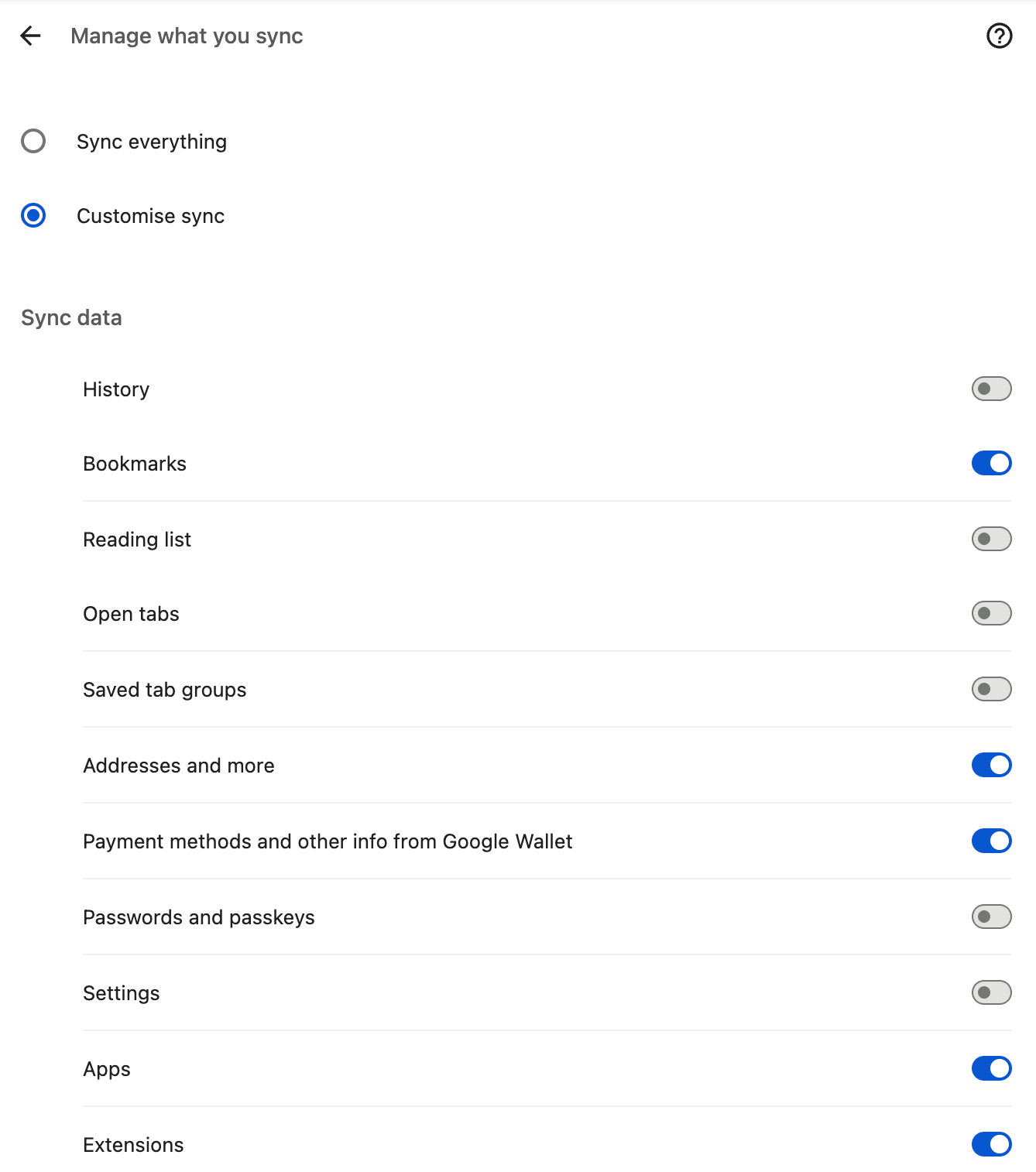
This built-in sync only works when you are signed into a browser account. In that case, the browser provider (for example Google in Chrome) stores your encrypted data on their servers and keeps it synchronized across your devices.
If you are using the browser without an account, or working fully offline, this type of cloud-based synchronization is not available. In that case, each device remains completely independent, and no automatic syncing of bookmarks or settings takes place.
Where Synchronization Breaks Down
Browser profiles are designed to keep separate environments within a single browser installation. Each profile has its own isolated bookmarks, settings, and extensions. A common example is separating work and personal usage. These profiles do not share data by design.
Multiple browsers go one step further: they are completely separate applications. They maintain independent data stores, use different internal storage mechanisms, and do not automatically exchange bookmarks or settings.
Because of these separations, there is no single shared sync layer across all profiles and browsers. Keeping everything consistent across them requires a dedicated synchronization system that operates outside the browser.
Bookmark Sidebar does not implement or manage this kind of cross-browser or cross-profile synchronization.
Why Sync is Complex
At first glance, synchronization seems straightforward, but it quickly becomes a systems problem once multiple devices are involved.
The first challenge is data ownership and conflict resolution. When two devices modify the same bookmark structure at the same time, the system must decide how to merge those changes. For example, one device may rename a folder while another deletes it entirely. There is no universally “correct” outcome.
This leads to conflict resolution strategies. Systems can use simple rules like “last write wins,” or more advanced approaches that attempt to merge changes intelligently. Each approach involves trade-offs between simplicity, correctness, and predictability.
Another difficulty is data structure complexity. Bookmarks are not flat entries — they form a hierarchical tree with folders, nesting, and ordering. Synchronizing structured trees is significantly more complex than syncing simple lists.
There is also the issue of platform differences. Browser profiles and different browsers may represent or store bookmarks differently, even if the user-facing concept is the same.
Finally, offline behavior and latency add another layer of complexity. Devices may be offline or partially synced, meaning systems must handle temporary inconsistencies and eventually converge to a consistent state.
For these reasons, bookmark synchronization is not simply “copying data between devices.” It is a distributed systems problem involving state, structure, and conflict resolution.
Practical Alternatives
If synchronization across profiles or browsers is required, dedicated tools or extensions designed specifically for cross-device sync are necessary.
It is also worth questioning whether such a setup is needed in the first place. If multiple browser profiles are expected to share identical bookmarks, the separation may not provide real value. The same applies to running multiple browsers for the same tasks, since they largely serve identical purposes for most users.
In many cases, reducing complexity is the more effective approach. A single browser profile, combined with a clear folder structure for work and personal bookmarks, is often sufficient. Choosing one primary browser and avoiding unnecessary duplication can significantly simplify the overall setup.
In short: fewer moving parts usually mean less headache.
Workarounds
There are a few ways to bridge the gap when built-in browser sync is not available or not desired.
Bookmark Sidebar includes one option for extension-specific settings. You can export your entire configuration (meaning all custom settings and preferences) into a file. This file can then be imported on another browser, profile, or device through the extension’s settings page. This makes it possible to replicate your setup without manually reconfiguring everything. In a sense, it is a simple form of manual sync.
However, this approach exists mainly as a fallback. It is not meant to replace the browser’s native sync system, which is designed to handle this automatically.
Bookmarks themselves can also be transferred manually. Most browsers include an export/import mechanism for this.
In Google Chrome, for example, you can open the bookmark manager at chrome://bookmarks/
From there, open the three-dot menu in the top-right corner and select Export bookmarks. This creates a file containing your full bookmark tree. On another browser, profile, or device, the same menu provides the Import bookmarks option, which restores them from the file.
While this method works reliably, it is manual by nature. It does not provide continuous synchronization, so any changes made later must be exported and imported again. For that reason, it is generally used as a backup or migration tool rather than a long-term sync solution.