Overlay Mode Explained
Back  Written by Philipp
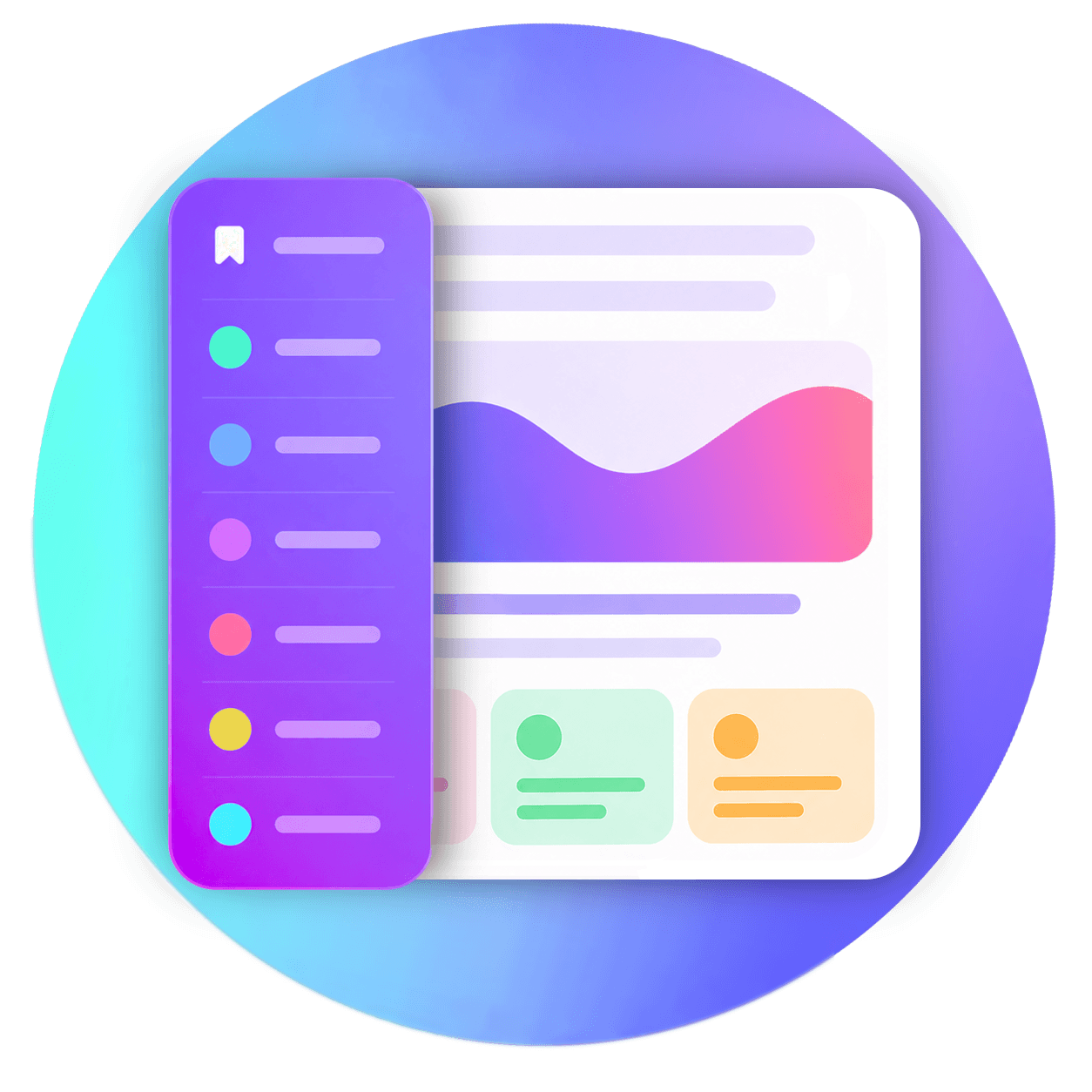
In overlay mode, your bookmarks are in a sidebar that slides in from the edge of the browser window. It sits on top of the website you are visiting, so the page itself doesn't move or shrink.
You can open the sidebar by clicking the extension icon, with a keyboard shortcut or by moving the mouse to the edge of the window (depending on your settings). It closes by itself when you open a bookmark or move the mouse away from it.
This makes overlay mode a good choice if you want to see as much of the website as possible and only need your bookmarks now and then. If you would rather keep your bookmarks visible next to the website all the time, the side panel mode may suit you better. You can switch between the two modes at any time in the extension settings.
Preview
Advantages and disadvantages
Advantages
- Doesn't take up any space. The website keeps the full width of the window. The sidebar only shows up when you need it.
- Gets out of your way. Once you have opened a bookmark, the sidebar closes automatically.
Disadvantages
- Doesn't work on every page. Some pages don't allow the sidebar at all (see the list below).
- Can clash with some websites. This is rare, but some websites can make the sidebar look or behave a little differently than it should.
Where the sidebar can't be opened
The browser protects some pages so that no extension can add anything to them. The sidebar can't open on these pages:
| Page | How to recognize it |
|---|---|
| The browser's default new tab page | The page you see when you open a new tab, unless an extension replaced it |
| Browser settings and other built-in pages | The address starts with chrome://, edge:// or about: (for example chrome://settings or about:blank) |
| Pages of extensions, including this one | The address starts with chrome-extension://, extension:// or moz-extension:// |
| New tab pages from other extensions | These are extension pages too, even if they look like a normal new tab page |
| The extension stores | The Chrome Web Store, the Edge Add-ons store and Firefox Add-ons |
| PDF files opened in the browser | The browser's built-in PDF viewer |
| Files on your computer | The address starts with file://. You can allow these (see below) |
| Pages excluded by your own URL rules | Pages you have excluded from the sidebar in the extension settings |
Allowing the sidebar on files from your computer
When you open a file from your computer in the browser (for example a saved HTML page), the address starts with file://. Extensions can't access these files unless you allow it:
- Open
chrome://extensions(in Edge:edge://extensions). - Find Bookmark Sidebar and click Details.
- Turn on Allow access to file URLs.
- Reload the page you have open.
What happens when the sidebar is blocked
If you click the extension icon on a page where the sidebar can't open, the extension opens a new tab where the sidebar works instead. This tab shows a message such as:
Something has blocked the sidebar – We have opened a new tab with the sidebar for you instead.
If the extension knows why the sidebar was blocked, the message tells you, for example "The sidebar cannot be used on the default new tab page".
This is not an error. It's intentional, so you can always get to your bookmarks.
How it works behind the scenes
You don't need to know any of this to use the sidebar. This section explains why the advantages and disadvantages above exist.
The sidebar becomes part of the website
To show the sidebar on top of a website, the extension adds it to the page you are visiting. To the browser, the sidebar is then part of that website. The two share the same space.
This also means that every time you go to a new page, the old page is thrown away along with the sidebar. The extension has to add the sidebar again to every page you visit.
Why it still opens quickly
Building the full list of your bookmarks from scratch on every page would be slow, especially if you have a lot of bookmarks. To avoid this, the extension keeps a ready-made copy of the sidebar. On the next page, it simply inserts that copy instead of rebuilding everything. It works like a template that only needs to be pasted in.
The copy is updated automatically when you add, move, change or delete a bookmark. That way, the sidebar opens fast and still always shows your current bookmarks.
Why websites can sometimes get in the way
Because the sidebar lives inside the website, the website's own design and features can affect it. For example, a website might use design rules that also change the sidebar's fonts or colors, or that cover the sidebar.
The extension does a lot to prevent this, so problems are rare. It puts the sidebar into two protective containers:
- A sealed box (a "closed shadow DOM"). The website can see that the box is there, but it can't look inside or change what's in it. The website's design rules don't reach into it either.
- A separate frame (an "iframe") inside that box. This is a small, self-contained page in the page. The bookmark list is shown there, completely separate from the website around it.
Your bookmarks stay private
These protections also keep you safe. Even though the sidebar runs on the website, the website can't read your bookmarks. A website that tries to look inside the sealed box gets nothing back.