Side Panel Mode Explained
Back  Written by Philipp
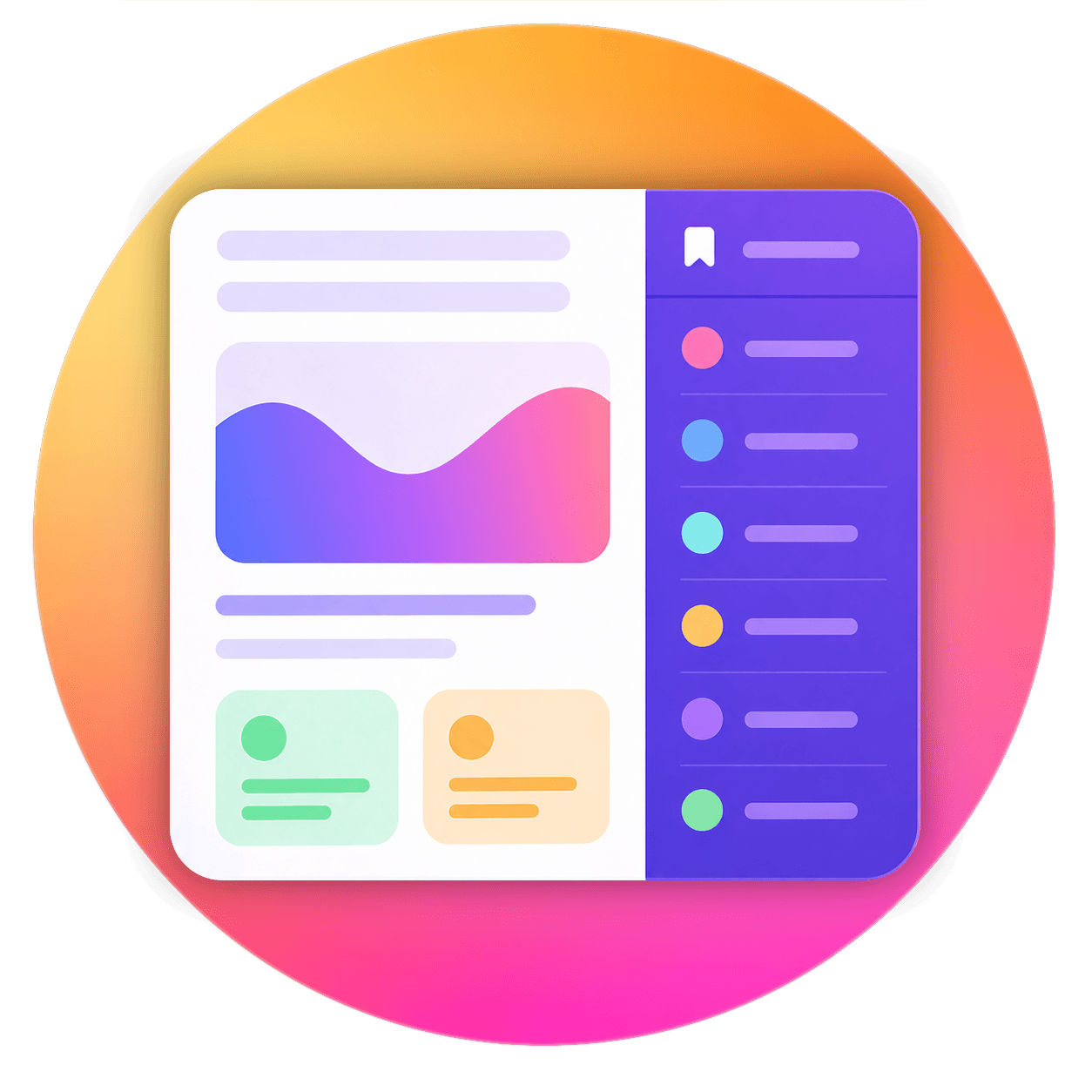
In side panel mode, your bookmarks are shown in the browser's own side panel. This panel is part of the browser and sits next to the website you are visiting, so the website becomes a little narrower to make room for it.
You open the side panel by clicking the extension icon. Once it's open, it stays open: it doesn't close when you open a bookmark, switch tabs or visit another website. You can close it with the close button at the top of the panel whenever you no longer need it.
This makes side panel mode a good choice if you use your bookmarks a lot and want them in view all the time. If you would rather keep the full width of the window for the website and only see your bookmarks now and then, the overlay mode may suit you better. You can switch between the two modes at any time in the extension settings.
Preview
Advantages and disadvantages
Advantages
- Always in view. Once you have opened it, the side panel stays visible next to the website until you close it.
- Stays open when you open a bookmark. You can open one bookmark after another without opening the sidebar again each time.
- Works on every page. Because the side panel belongs to the browser and not to the website, it also works on the new tab page, the browser settings, PDF files and other pages where the overlay can't open.
- No clashes with websites. Websites can't change how the side panel looks or behaves.
Disadvantages
- Takes up space. The website has less room, because the side panel sits next to it instead of on top of it.
- Is fairly wide. The browser decides how narrow the side panel can be. You can make it wider by dragging its edge, but not narrower than the browser allows.
- Everything has to fit into the panel. The extension can only show things inside the side panel, not on top of the website. For example, when you edit a bookmark in overlay mode, a dialog opens in the middle of the window. In side panel mode, it opens inside the side panel instead and covers your bookmarks until you close it.
Choosing on which side the panel appears
In side panel mode, the browser decides whether the panel is shown on the left or the right side of the window. Not every browser lets you change this. In some browsers, the side panel is always on the same side.
In Chrome, you can choose the side in the browser settings (not in the extension):
- Open
chrome://settings/appearance. - Find the Side panel option.
- Choose Show on left or Show on right.
The Configure Side Panel Position button in the extension settings takes you straight to this option.
The position you choose in the extension settings only applies to the overlay mode.
How it works behind the scenes
You don't need to know any of this to use the sidebar. This section explains why the advantages and disadvantages above exist.
The browser provides the panel
Chrome and Edge have a built-in side panel, a reserved area at the edge of the window. Extensions can ask the browser to show their own content in it. Bookmark Sidebar uses this feature to show your bookmarks there.
The browser fully manages the panel itself. It decides where the panel is, how wide it can be and when it is shown. That's why some options, like on which side the panel appears or its minimum width, have to be changed in the browser settings, or can't be changed at all.
Your bookmarks stay private
The side panel is completely separate from the website you are visiting. It doesn't run inside the website, so the website has no way to reach it and can't read your bookmarks.